
Catalog and products
Games and catalog visibility
Choose the games you sell and what part of their catalog the buyer will see.
The global catalog already did the heavy lifting: each card's name, set, number and image. In Settings › Games you choose the games you sell. An active game always includes all its current sets and the ones the platform adds later.
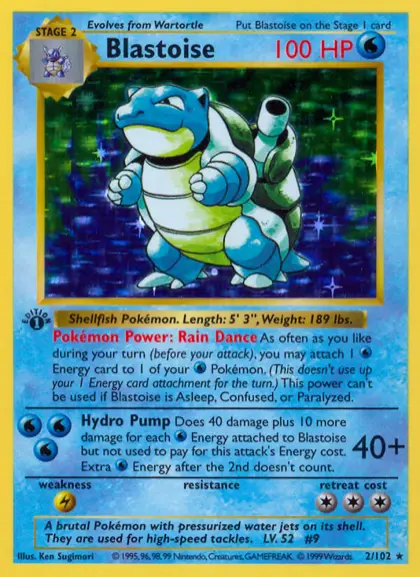
Then you choose a single visibility for the whole store, which applies to all your active games: Whole catalog of your active games so the buyer finds their cards even if you don't have stock, or In-stock cards only so they only see what's available now. You can turn off a game when you don't sell it.
- Whole catalog of your active games: every synced card of those games appears in the storefront. If it has no stock, it's shown as unavailable and doesn't allow a purchase that would fail.
- In-stock cards only: a card appears while it has sellable stock. If it sells out, it disappears from the storefront, search and counts until it's available again.
- Turning off a game doesn't delete your products, prices or stock. It only hides it from the storefront and stops offering its cards in the store's catalog.
Choosing single cards
To receive a specific card you don't have yet, use Inventory › Receive stock: search for it in From the master catalog and confirm the receipt. Only the chosen record is created, with its variant and stock.