
Point of sale (POS)
Make a sale at the counter
Search or scan, charge with mixed methods and hand over pickups.
- Search for the card by name or scan it with a barcode reader. Each result shows its condition and, when recorded, its finish —for example, NM · Normal or NM · Holofoil— so you don't confuse two versions of the same card. If it's available, pressing Enter adds it right away. If you see «Not available now», the card stays visible so you recognize it, but it can't be added or charged from that till. For Pokémon you can also search 54, 054 or 054/128: the displayed name includes the collector number and official set total when available; promos retain codes such as XY174.
- Build the ticket and check the condition there again and, when relevant, the finish before charging. You can raise or lower quantities; each line's cap is the available stock, not the branch's physical stock.
- Charge. Combine whatever methods you want until the total adds up: with cash it calculates the change, with card you can note the reference, and with store credit you look up the customer by email and it's taken from their balance.
- Confirm the sale: stock is deducted instantly, just like on the website, and the receipt stays on screen.
Main tillShift open
Current sale
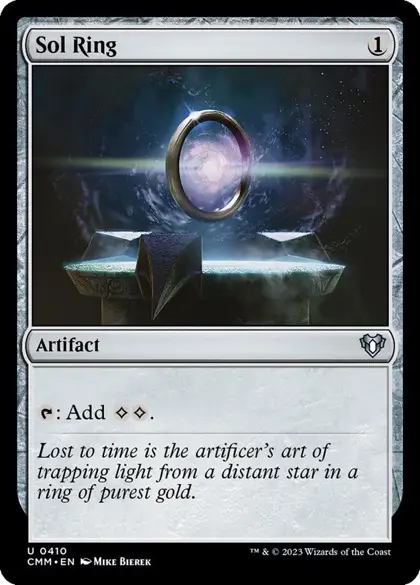 Sol RingNM · Commander Masters · ×2$4.00
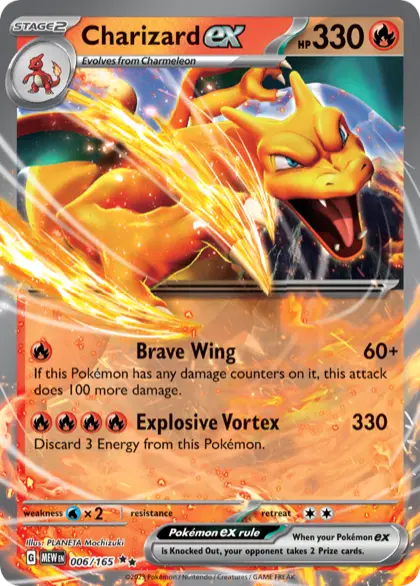 Charizard exNM · 151 · ×1$9.90
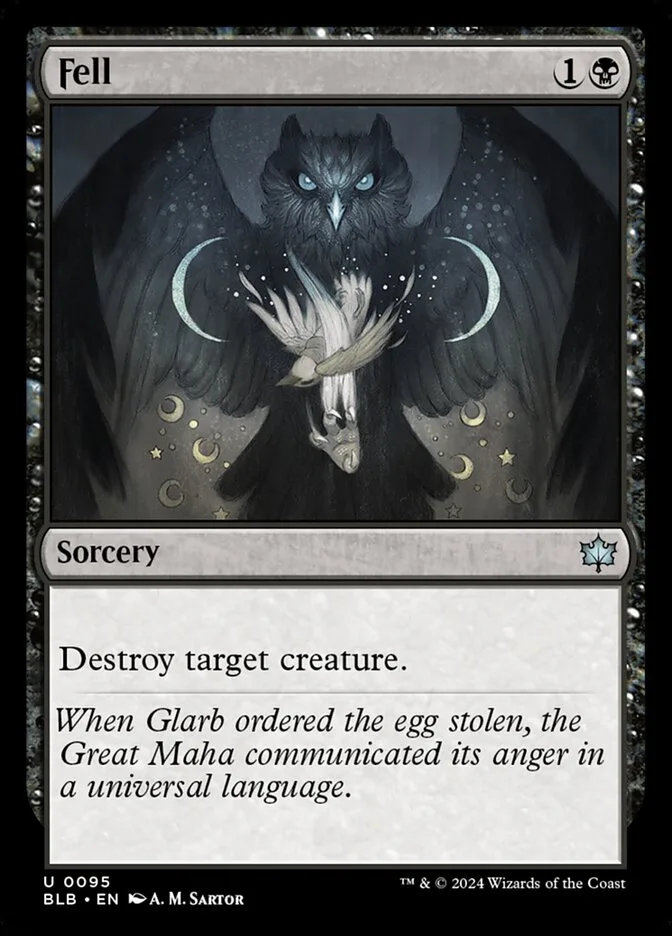 FellNM · Bloomburrow · ×1$15.50
Sale total$29.40
- Cash receivedCharged to cardAvailable balance
- $40.00$29.40$50.00
- Change dueLeft to payBalance after the sale
- $10.60$0.00$20.60
Change is worked out from the cash received.The card is charged on your terminal, and the payment is recorded.The credit comes off the customer's account.
- Pickups: if someone bought online for in-store pickup, redeem their code in the Pickup tab.
- Buy cards at the counter: in the Card buying tab you record buying cards from a customer at the counter (see How the buylist works).
- History, voids and refunds: you can check the History without choosing a till; use the Till filter if you need to see only its sales. To void or refund a sale you do need to enter the till that will process the reversal, look up the sale by its number and use Void sale (it was charged by mistake, it should never have been recorded) or Refund sale (the customer brings it back). Only the owner sees these buttons; History is hidden entirely in kiosk mode. The action covers the whole sale — a single line can't be reversed — and the confirmation reminds you which payments you must settle by hand: cash is handed back from the currently selected till and card payments are refunded at the physical terminal; store credit does go back to the customer's balance automatically. The result is saved on the sale so you can check it later, but there's no action to mark those obligations as settled. If the branch of an old sale was already turned off, the money and cost are still fully reversed; only the physical stock is stranded in that branch instead of going back to a sellable shelf. History shows that discrepancy and you can recover those units from Inventory → Stock. A sale that's already voided or refunded can't be reversed again.